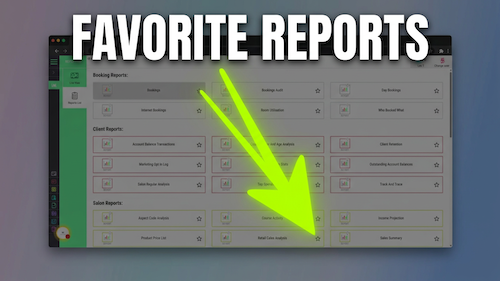
Favourite reports
[data-sm-page="guide-06-favourite-reports"],[data-sm-page="guide-06-favourite-reports"] *{font-family:Arial,Helvetica,sans-serif !important;box-sizing:border-box;}[data-sm-page="guide-06-favourite-reports"] h1{font-family:...
Video walkthrough: adding permanent extra booking time to a client’s future appointments.
Quick answer
Open the client’s record, select Edit Client, scroll to Settings & switches, choose the required value from Extra booking time minutes, then select Update Client.
Before you start
Step-by-step instructions
Follow these steps to automatically add more time to this client’s future bookings.
Useful tips
Troubleshooting
Frequently asked questions
It automatically adds additional time whenever the client books an appointment.
It is in Settings & switches on the client settings page.
The extra booking time is selected in five-minute increments.
Yes. Once saved, the extra time is automatically added to the client’s future bookings.
Yes. Reopen the client settings, choose a different value or remove the extra time, then select Update Client.
Offline reference
Keep a printable copy for reception teams or use it during staff training.