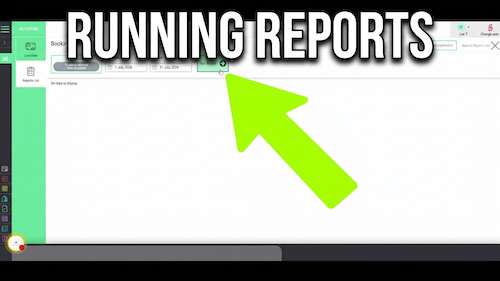
Running reports
[data-sm-page="guide-04-run-reports"],[data-sm-page="guide-04-run-reports"] *{font-family:Arial,Helvetica,sans-serif !important;box-sizing:border-box;}[data-sm-page="guide-04-run-reports"] h1{font-family:...
Video walkthrough: adding a discount to a client bill in the Salon Manager Till.
Quick answer
Open the client’s bill in the Till, select Discounts, choose the required discount and the service or retail item it should apply to, then select Confirm. Salon Manager updates the bill total automatically.
Before you start
Step-by-step instructions
Follow these steps to choose the discount, select the item and confirm the updated bill.
Useful tips
Troubleshooting
Frequently asked questions
Select the client’s bill, open Discounts, choose the required discount and bill item, then select Confirm.
You can select the individual service or retail item that the discount should apply to.
Salon Manager recalculates the bill total as soon as the discount is confirmed.
The selected item shows a discount indicator and the bill displays the value deducted.
Offline reference
Keep a printable copy for reception teams or use it during staff training.
Last reviewed: 14 July 2026.